Calculator
Every key on the online calculator, explained
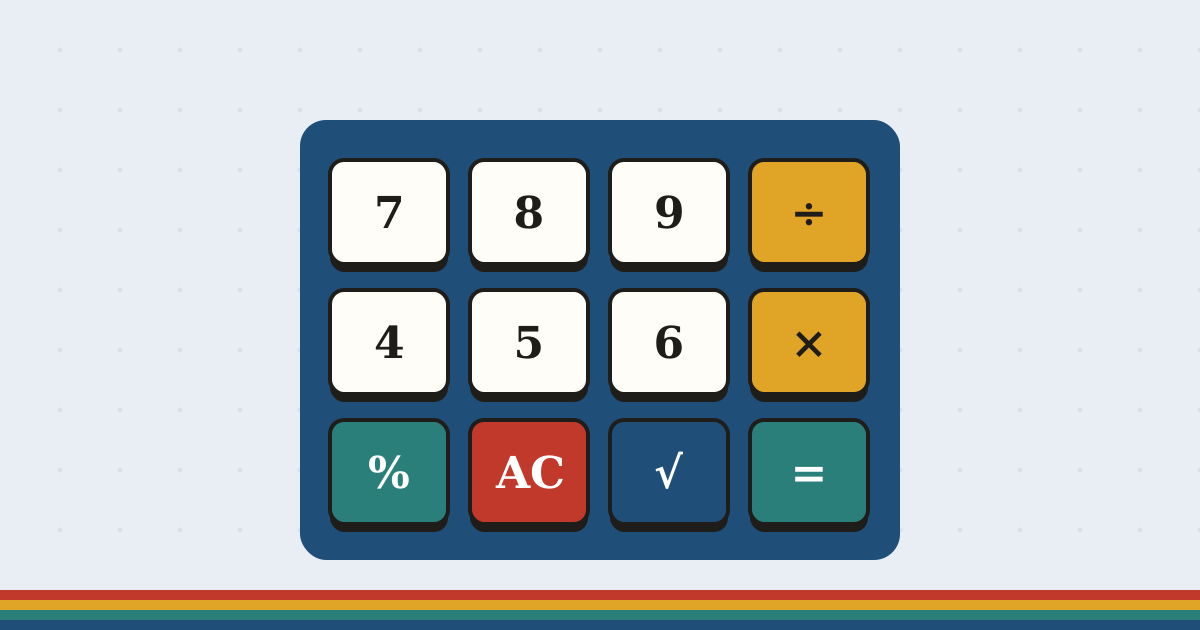
The calculator on the homepage looks like an old desk calculator, and works like one, with a few scientific keys added. This page explains every key, the keyboard shortcuts, and a couple of habits that save mistakes.
The basic keys
| Key | What it does | Keyboard |
|---|---|---|
| 0 to 9 and . | Type numbers and decimals | 0 to 9 and . |
| + − × ÷ | Add, subtract, multiply, divide | + - * / |
| ( ) | Group part of a sum so it is worked out first | ( ) |
| = | Work out the answer | Enter or = |
| ⌫ | Delete the last character | Backspace |
| AC | Clear everything and start again | Esc |
| % | Percent, the way shop calculators do it | % |
The calculator follows the usual order of operations: multiplication and division happen before addition and subtraction, and brackets come first of all. So 2 + 3 × 4 is 14, and (2 + 3) × 4 is 20.
How the % key works
The % key turns the last number into a percentage of what came before it, which is how most shop and desk calculators behave:
80 + 15 %becomes 80 + 12, so = gives 92 (adding 15%).80 − 15 %becomes 80 − 12, so = gives 68 (taking 15% off).80 × 15 %becomes 80 × 0.15, so = gives 12 (15% of 80).
You will see the converted number on the display straight away, so you always know what is being calculated.
The scientific keys
The keys on the top two rows work on the whole number or sum currently on the display, then show the result. Type the number first, then press the key.
| Key | What it does | Example |
|---|---|---|
| sin, cos, tan | Trigonometry, in degrees | 30 then sin gives 0.5 |
| log | Logarithm, base 10 | 1000 then log gives 3 |
| ln | Natural logarithm, base e | 1 then ln gives 0 |
| √ | Square root | 144 then √ gives 12 |
| x² | Square | 12 then x² gives 144 |
| π | Pi, 3.14159... | 2 × π gives 6.283185307 |
Because these keys act on everything on the display, 3 + 2 followed by x² gives 25, not 7. If you only want to square part of a sum, work that part out first, or use brackets and press = before the function.
Worked examples
- Tip:
86.40 × 18 %= 15.552, so the tip is about $15.55. - Sale price:
120 − 30 %= 84, then− 20 %= 67.2. - Height of a ramp: a 4 m ramp at 30°: type 30, press sin to get 0.5, then
× 4= 2 m. - Diagonal of a 3 by 4 rectangle:
3 × 3 + 4 × 4= 25, then √ gives 5.
Using it with the keyboard
On a laptop or Chromebook you do not need to click at all. The calculator listens to the keyboard as soon as the page loads. Typing into the scratch notes underneath does not move the calculator, so you can write your working without fighting it.
Private by design
Everything runs in your browser. Nothing you type is sent anywhere, and there is nothing to install or sign up for. It works the same on a phone, a tablet, a laptop and a school Chromebook.